
Copy Prompts to Another Request Schema
Spin up a draft Request Schema Version on a different Request Schema by porting this version's base prompt and the field prompts whose fields match.
Spent weeks tuning the base prompt and per-field prompts on one Request Schema Version and now want a comparable starting point on a different schema? Don't retype anything. The Export A Copy To Another Request Schema widget creates a new draft on the target Request Schema, copying the base prompt and porting every field prompt whose field exists on both sides.
You stay in control: you see a preview of exactly what carries over before any rows are written, and the new version lands as a draft so you can refine and publish at your own pace.
What gets copied (and what doesn't)
- Base prompt — always copied. A new draft Base Prompt Version is created on the target schema with the source's prompt text verbatim.
- Field prompts — copied for every field that exists on both sides. "Exists on both sides" means the schema keys match and the data types match at the same nesting path. Renames, type changes, and structural changes count as no match.
- Field prompts on source fields the target doesn't have — dropped. You'll see them in the preview so nothing disappears silently.
- Target fields the source doesn't have — left blank. You'll fill those in on the new draft.
Walkthrough
1. Open the source Request Schema Version
From /admin/collections/request-schema-versions, click into the version whose prompts you want to copy. Either a draft or a published version works — you're reading from it, not editing it.
2. Find the Export widget in the right sidebar
Scroll the sidebar past Status until you see Export A Copy To Another Request Schema. The widget has a single dropdown and an Export button.
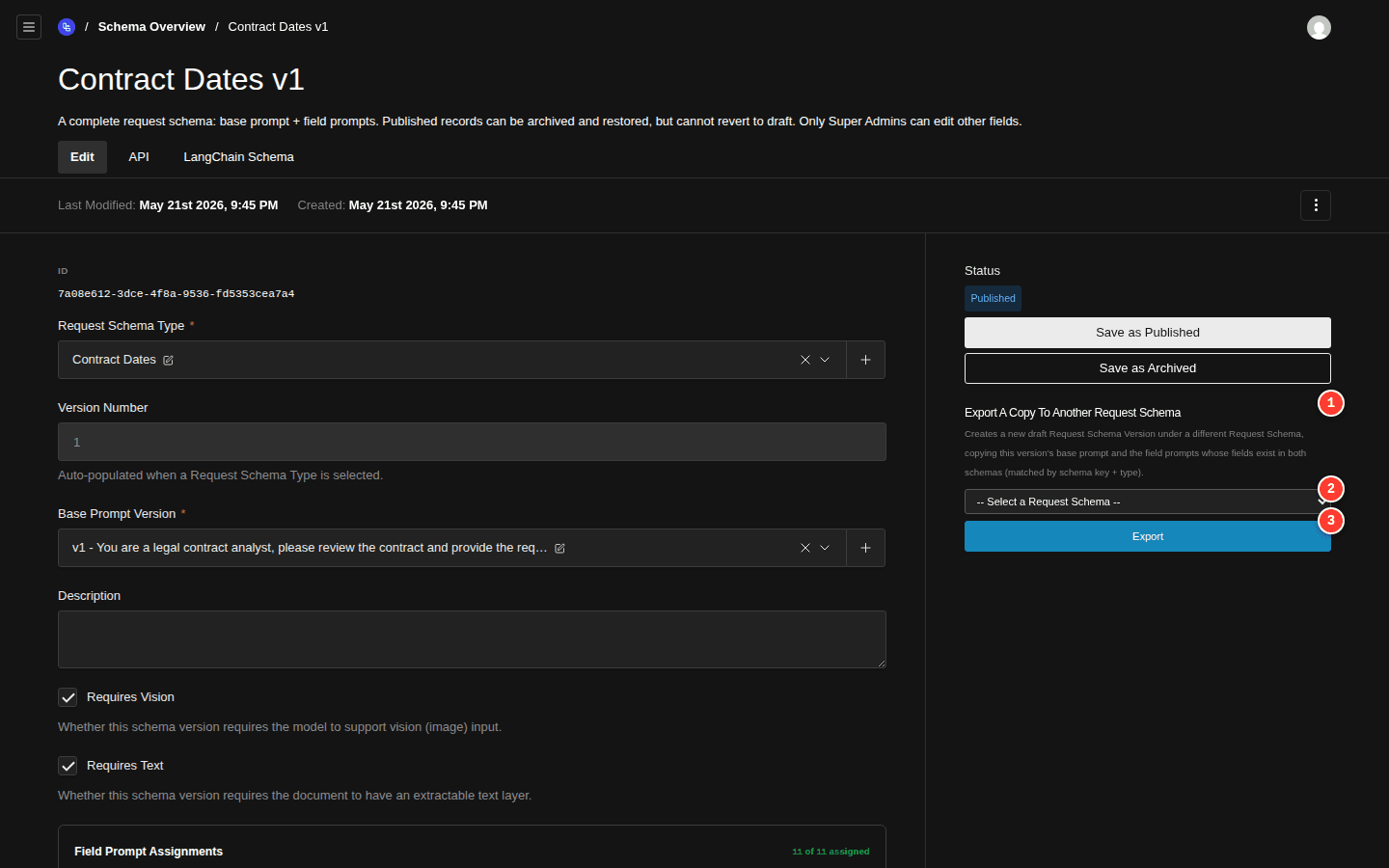
- Widget heading and explanatory sentence
- Target schema dropdown
- Export button (disabled until a target is picked)
The dropdown lists every published Request Schema except this version's own schema. If you see a Not available (draft Request Schemas) block underneath, that's a peek at unpublished schemas — they won't accept incoming exports until they're published.
3. Pick a target Request Schema
Select the schema you want to seed. The Export button activates as soon as you pick something.
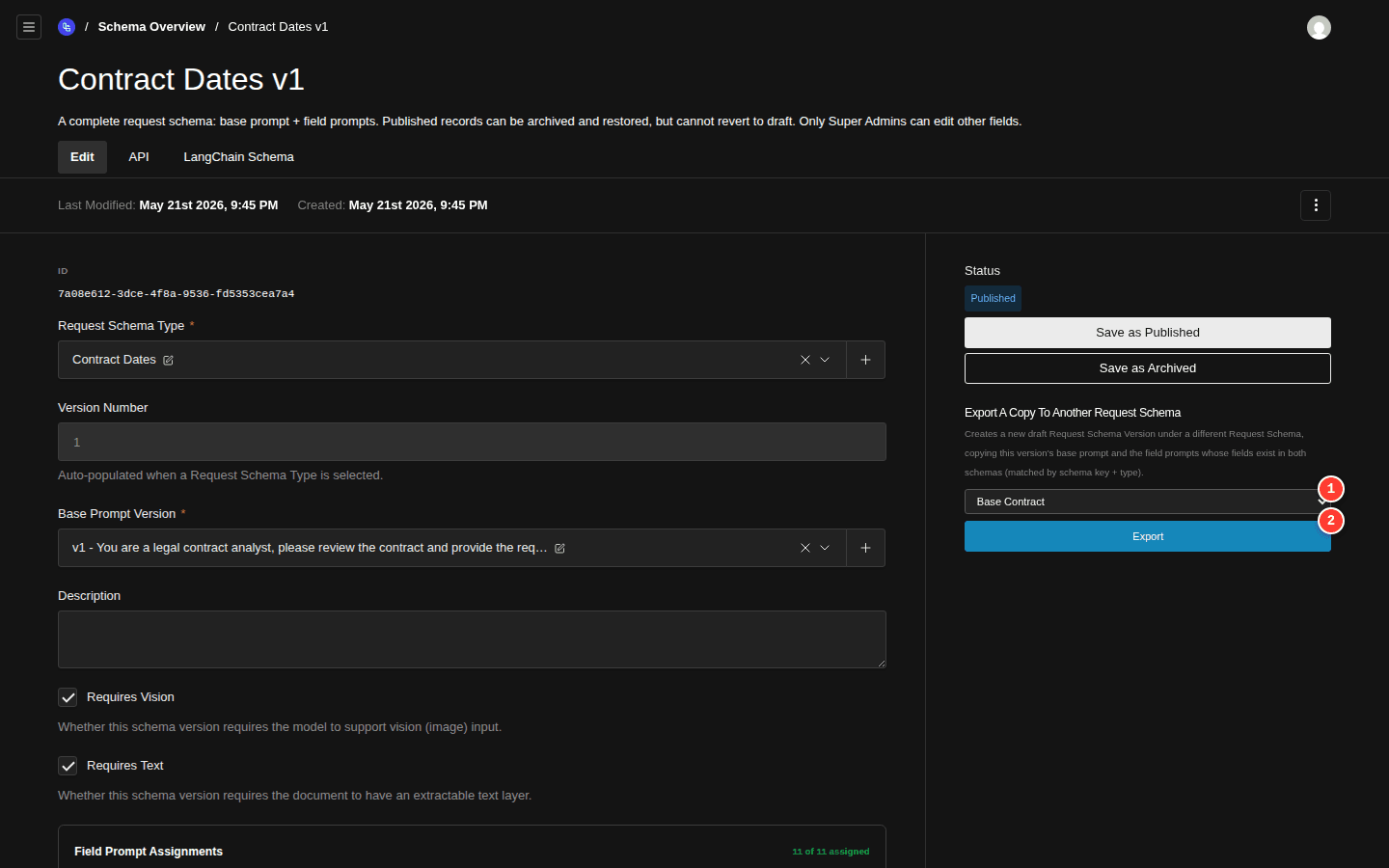
- Selected target in the dropdown
- Export button (now enabled)
4. Review the mapping preview
Click Export. A modal opens — titled Export to <your target> — that walks you through exactly what's about to happen. Nothing is written yet.
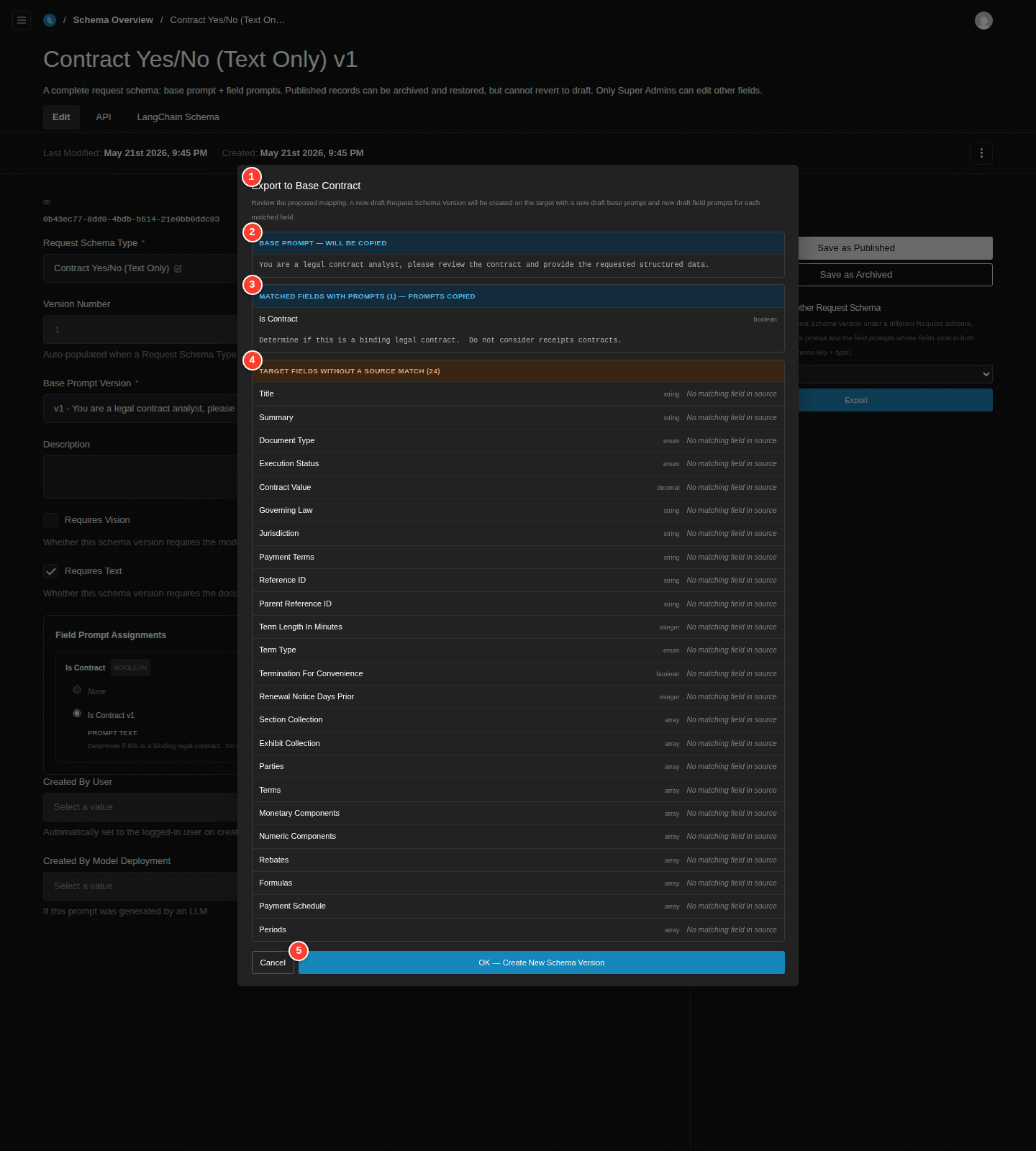
- Modal heading — names the target schema
- Base prompt — will be copied (always)
- Matched fields with prompts — these prompts come with you
- Target fields without a source match — these stay blank on the new draft
- OK — Create New Schema Version
Depending on how similar the two schemas are, you may also see:
- Matched fields without prompts — fields that line up structurally but the source didn't have a prompt to share.
- Source prompts dropped — prompts that won't carry over because the target has no matching field. Worth a glance: if you really wanted that prompt on the target, you may need to add a field on the target schema first and try again.
- Source-only fields — source fields the target lacks, listed for completeness even though no prompt was attached.
Hit Cancel to back out, or OK — Create New Schema Version to commit.
5. Land on the new draft
On confirm, the system creates everything in a single transaction — a new Base Prompt Version, one Request Schema Field Prompt Version per copied prompt, and a new Request Schema Version joining them all — then redirects you to the new RSV. It's a draft, so you can keep editing.
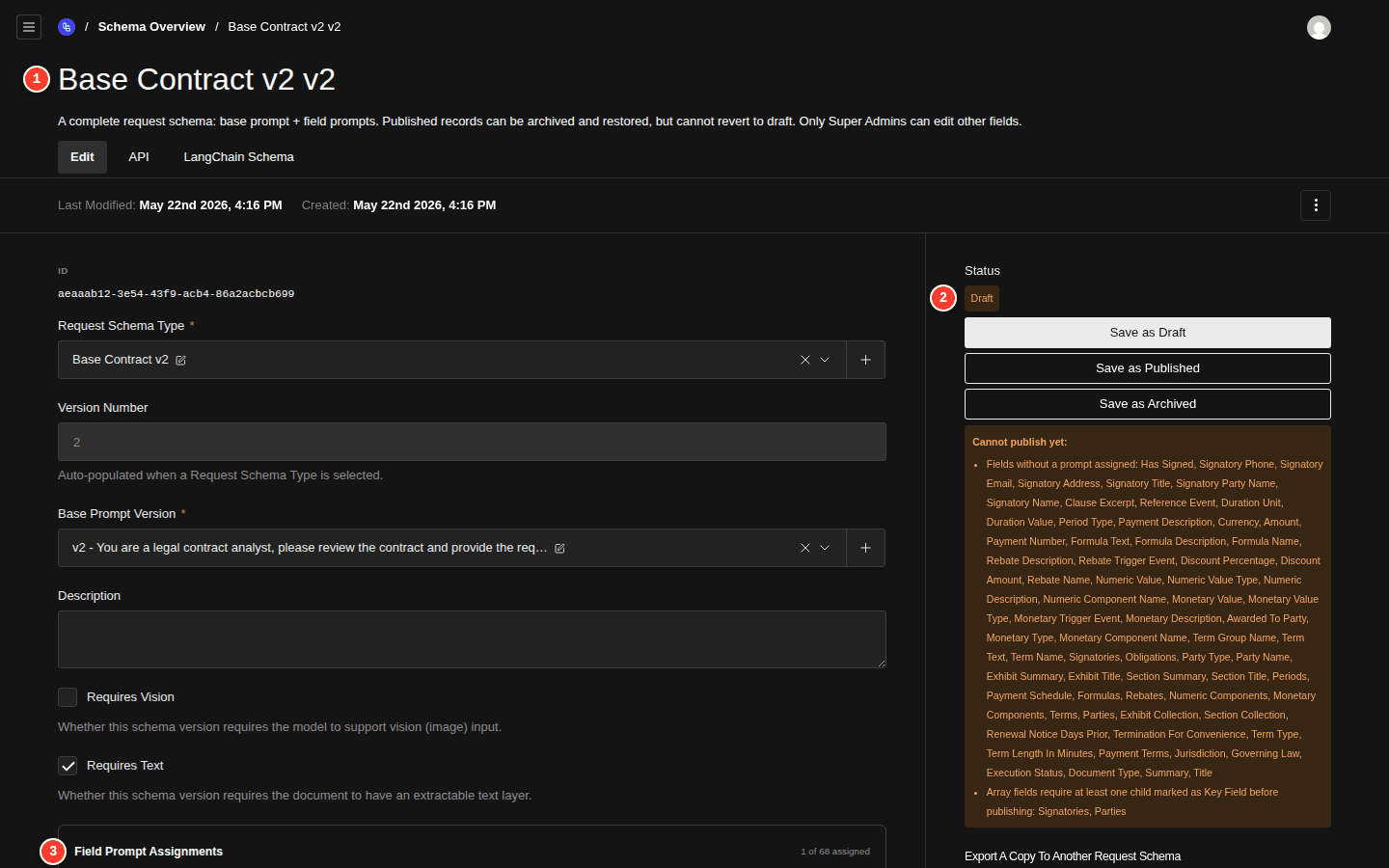
- displayTitle of the new RSV — schema type name + new version number
- Status: Draft
- Field Prompt Assignments — copied prompts are already filled in; the rest are blank
From here, fill in any blank field prompts, tweak the base prompt if you want, then move the version to Published the same way you would any other.
How matching works
A source field matches a target field when all three of these are true:
- The fields have the same schema key (
fieldNameInSchema). - They have the same data type (
string,integer,date,boolean,enum,decimal,object,array,json). - They sit at the same nesting path inside the schema.
So a top-level effective_date (date) on one schema matches a top-level effective_date (date) on another. But:
effective_date(date) doesn't matcheffective_date(string) — type changed.effective_date(date) doesn't matchstart_date(date) — key changed.dates.effective_datedoesn't match a top-leveleffective_date— path changed.
In all those cases the source's prompt ends up in the Source prompts dropped block of the preview, and the target field shows up in Target fields without a source match.
Notes
- Only published Request Schemas appear in the dropdown — exports always land on stable parents. Draft target schemas are listed in a separate Not available (draft Request Schemas) block so you can see why a schema you were expecting is missing.
- The new RSV always starts as a draft. Nothing on the source changes.
- Both the new base prompt and the copied field prompts are written as draft rows on the target. They each get a fresh
versionNumberon their parent — the existing prompt history on the target stays untouched. - The whole commit runs inside a single database transaction. If anything fails partway through, no half-built rows are left behind.
Related
- Build a Request Schema — the page where the source prompts were originally written.
- Export a Schema as LangChain JSON — the other "export" on this collection, for pushing the schema out to your own LangChain code.