
Run a Manual Test
Benchmark a Request Schema Version against one or many model deployments on demand, then compare accuracy, cost, and latency side by side.
Got a schema, at least one ground-truth document, and a test set? You can ask: how do these models actually do on this?
Manual Test Run is the on-demand way to find out. Pick a schema version, point it at a document or a whole test set, check off as many models as you like, and hit run. It extracts, scores every field against the matching ground-truth response, and lays the results out as a documents × models grid you can drill into — one Test Result Set saved per model.
What you'll need
- A Request Schema Version that's runnable — published, or a draft with a field prompt on every field.
- Either one ground-truth document (with a matching response) for a quick spot-check, or a published test set for a real benchmark.
- At least one Model Deployment with an LLM provider key assigned to your tenant. If a model shows as disabled, see Manage LLM Provider API Keys; for what's wired up at all, see Browse Supported LLM Models. Only chat deployments are offered here — embedding deployments can't run an extraction, so the picker leaves them out.
Walkthrough
1. Open Manual Test Run
From the admin sidebar, click Manual Test Run (or go to /admin/manual-test-run). You'll see a four-step form — Document Type → Ground Truth Document / Test Set → Request Schema Version → Model Deployments — with a Run Test button at the bottom.
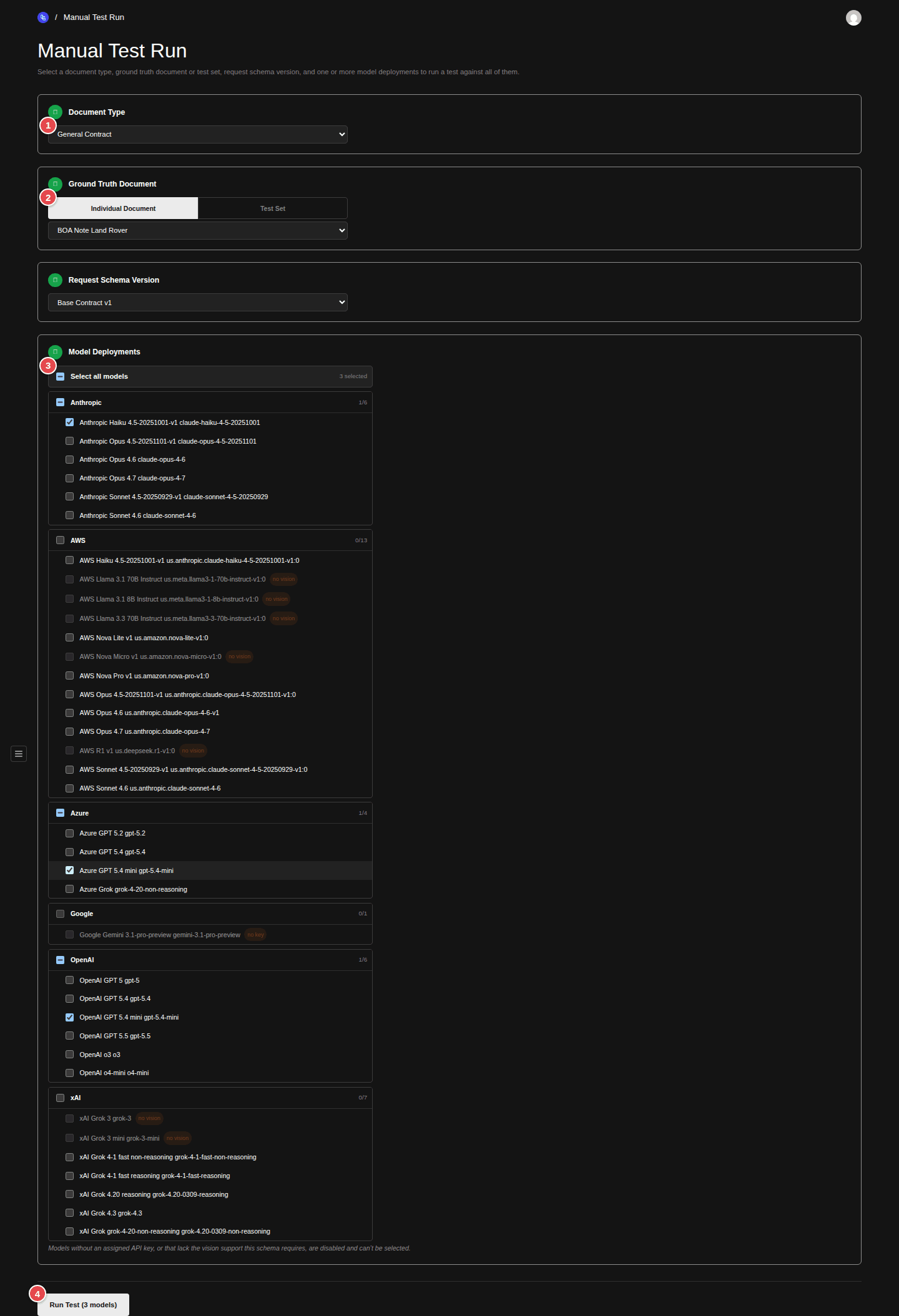
- Step 1: Document Type — picking one lights up the rest of the form
- Step 2: toggle between a single Individual Document and a whole Test Set
- Step 4: the provider-grouped model picker — check as many models as you want
- Run Test — the count in parentheses is how many models you'll run
2. Pick the Document Type (Step 1)
Choose from Select a document type.... As soon as you pick one, Steps 2 and 3 light up — they filter to the documents, test sets, and schema versions that belong to this Document Type.
3. Pick a single document or a whole test set (Step 2)
Step 2 has a toggle: Individual Document or Test Set.
- Individual Document gives you a single dropdown (Select a ground truth document...) — best for a quick "did this one work?" check while you're iterating.
- Test Set gives you a Select a test set... dropdown and, once chosen, a N documents in set tag so you know the scope — this is the real benchmark you'll record.
4. Pick the Request Schema Version (Step 3)
The dropdown shows every Request Schema Version (Published or runnable Draft) for this Document Type. A draft only appears once it has a Field Prompt Version on every published field of its Schema Type — anything missing prompts is hidden, because the run would silently extract nothing for those fields. If nothing's runnable yet you'll see No request schema versions with all field prompts assigned.
Running a Draft is fine for iteration — it's exactly what gets Published when you flip its status, so a clean Draft run is a strong signal you're ready to publish.
5. Select one or more Model Deployments (Step 4)
This is the big one. Step 4 is a multi-select picker grouped by provider (Anthropic, AWS, Azure, OpenAI, xAI, …). Check individual models, or use a provider's Select all ... models row, or Select all models at the top. The counter shows how many you've picked (e.g. 3 selected). Every model you check becomes its own column in the results — that's how you compare models head-to-head in a single run.
Some models are disabled and can't be checked:
- no key — there's no LLM provider key assigned to that deployment for your tenant.
- no vision — the schema version you picked in Step 3 needs vision, and that model can't do vision. (Pick a schema version sets this dynamically: choose a vision schema and the non-vision models grey out on the spot; if you'd already checked one, it's quietly removed from your selection.)
The note under the picker spells out why: Models without an assigned API key, or that lack the vision support this schema requires, are disabled and can't be selected.
6. Click Run Test
The button enables once Steps 1–4 are satisfied. With more than one model it reads Run Test (3 models) so you know exactly how big the run is. Click it and each selected model runs against every document in turn — extract with the schema's prompts, capture the structured output, score every field against ground truth. A progress bar tracks Running X of Y (model × document)..., and a Cancel button lets you stop early (already-finished models keep their saved results).
Reading the results
Results fill in live as the run progresses: a grid with documents down the rows and models across the columns. Each column header carries the model's average score badge (Avg NN.N%), and the panel header shows the running Total cost for the whole grid.
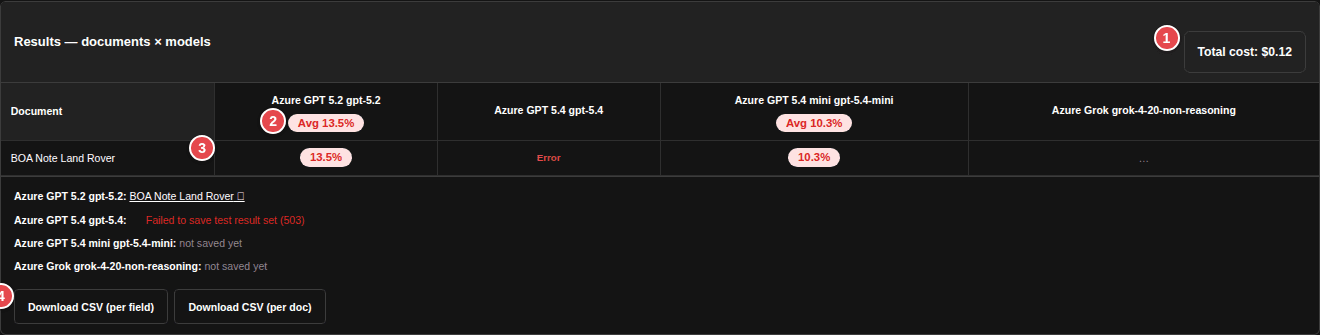
- Total cost — the summed cost of every extraction in the grid
- Per-model average score, shown in each column header
- Each cell is a clickable score — open it to drill into that run
- Download CSV — per-field or per-document, for the whole grid
Each cell is one model's result for one document:
- A score badge (NN.N%) — green, amber, or red by how high it is. Click it to drill in.
- Error — that extraction failed (rate limit, provider outage, an unsupported request). The rest of the grid still completes; only that cell is affected.
- … — still running, or skipped because you cancelled.
Below the grid, each model lists links to its saved Test Result Documents (document name ↗, opens in a new tab), or a save error if persistence failed. And once the run finishes you get CSV export — Download CSV (per field) for every field's expected/actual/verdict across the grid, or Download CSV (per doc) for one row per document with its score, item counts, duration, and cost.
Drill into a single result
Click any score cell to open its detail panel: the model's raw Extraction Result JSON, the cost and duration, and the full Ground Truth Scoring table — every field with its expected value, the model's actual value, its weight, and a verdict (correct, wrong, or missing).
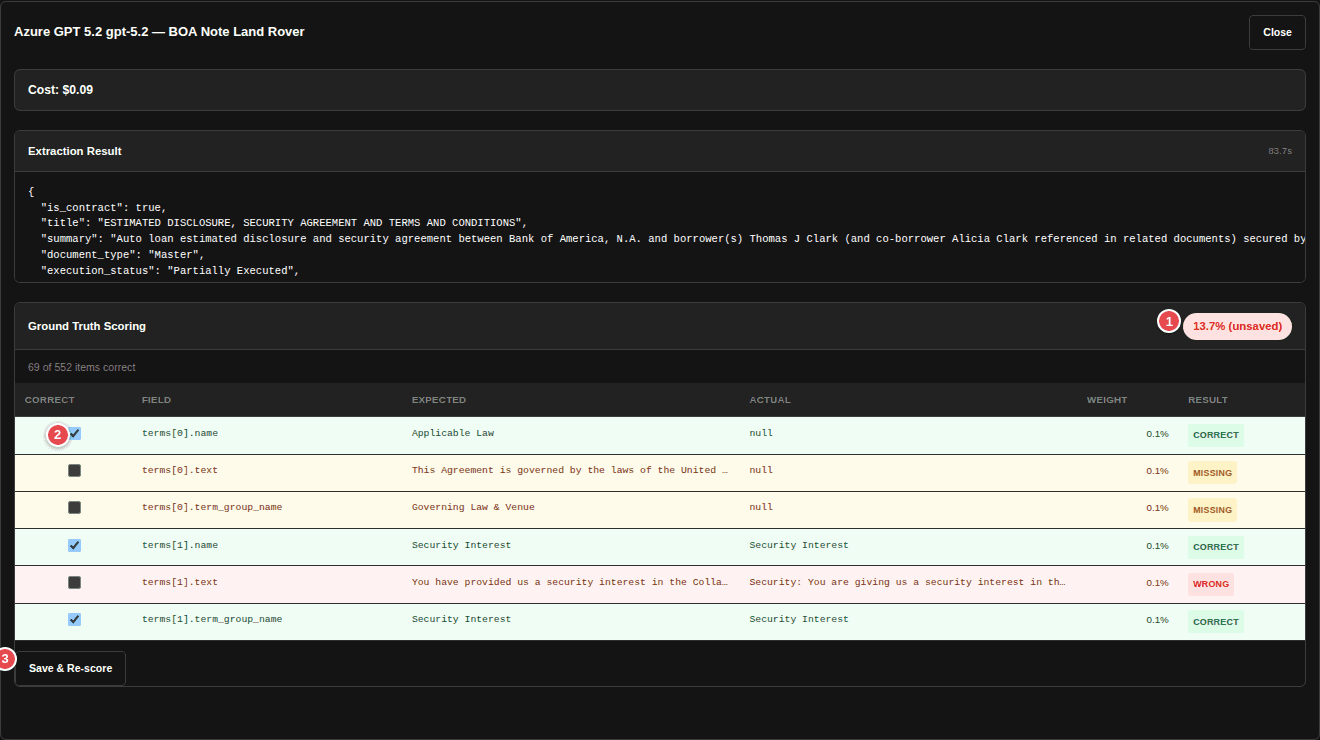
- Live score badge — recalculates as you override, marked '(unsaved)' until you save
- Correct column — tick or untick a field to override the auto-verdict
- Save & Re-score — writes the overrides and re-averages the Test Result Set
Override the scoring
The auto-scorer isn't always right. The model writes "Acme Corp." and your ground truth says "Acme Corporation" — technically a mismatch, so it's scored wrong, but you'd call it correct. You don't have to live with the machine's verdict.
In the Ground Truth Scoring table — whether in the drill-down panel above or on the saved document page below — every field row has a Correct checkbox. Tick a field the scorer marked wrong or missing to count it as correct; untick one it marked correct to count it against the score. The percentage badge recalculates live and shows (unsaved) while you have pending changes. When the grades look right, click Save & Re-score — it recomputes the document's score from your overrides (every field keeps its original weight; you're only flipping correct vs. not) and re-averages the parent Test Result Set so the rollup stays honest. You'll see Re-scored and saved. when it lands.
On the saved Test Result Document
Every cell that scored is also saved as a Test Result Document, and you can re-grade it any time — you don't have to do it in the heat of the run. Open one (from the saved-document links under the grid, or from Test Analytics) and you'll find the same Field Scoring editor, sitting right above the raw Results Json: the live score badge, the per-field Correct checkboxes, and Save & Re-score.
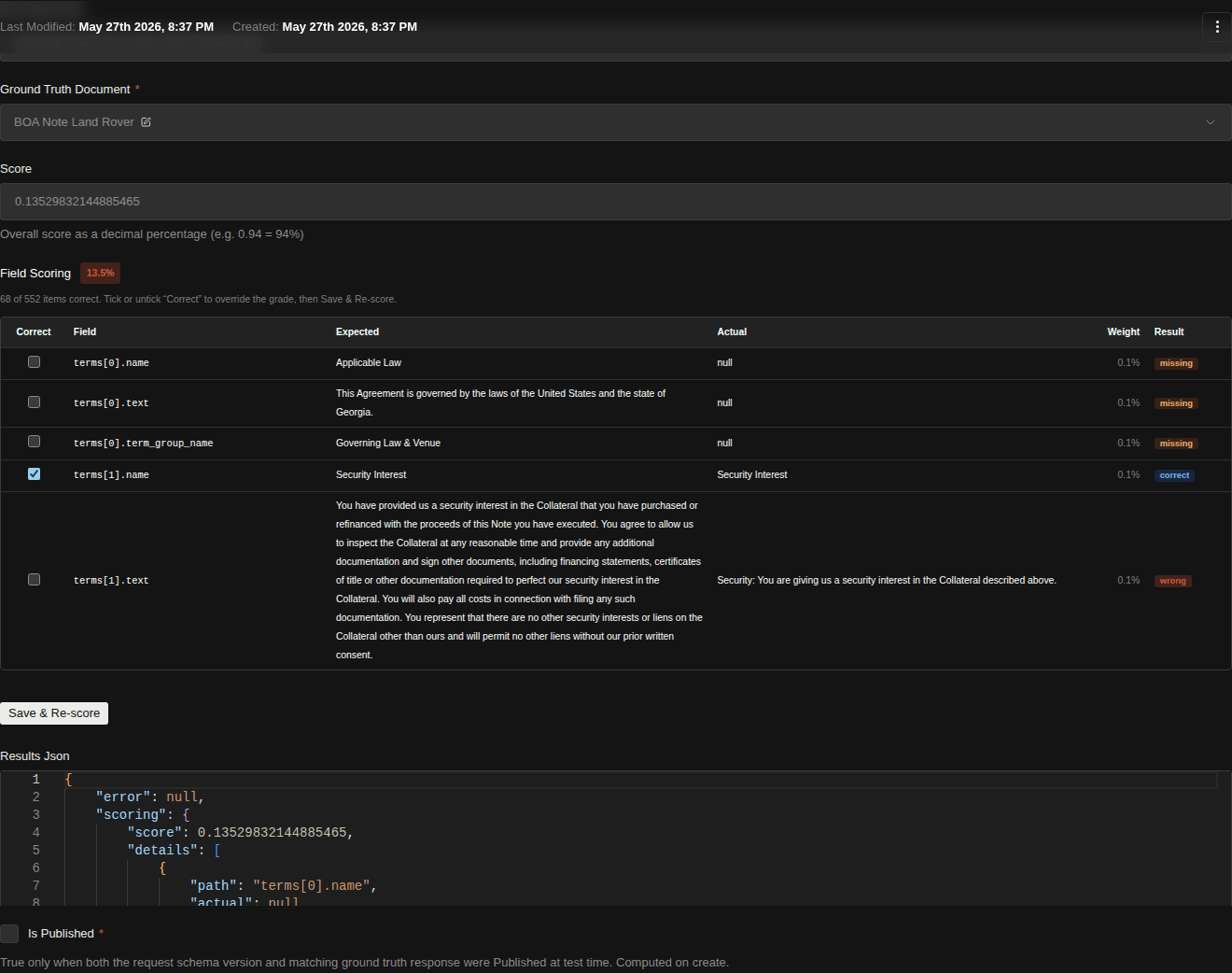
The Field Scoring table is the friendly view; the Results Json field underneath holds the full machine record — expected responses, actual responses, and scoring details — if you ever need the raw data.
Common errors
- "Cannot run: the following documents are missing a published ground truth response" — the picked document(s) don't yet have a published Ground Truth Response for the schema's Schema Type. Each row in the list has a Create Ground Truth Response shortcut that opens a pre-filled drawer.
- A model is greyed out with no key — no LLM provider key is assigned to that deployment for your tenant. Add or rotate one and it becomes selectable.
- A model is greyed out with no vision — the schema version you chose needs vision and that model can't do it. Pick a vision-capable model, or a schema version that doesn't require vision.
- An Error cell after the run — that single extraction failed. Click it to read the message; common causes are a provider rate limit or usage cap (e.g. "You have reached your specified API usage limits") and transient provider errors. The other cells are unaffected — re-run just that model when you're ready.
Related
- Build a Request Schema — the schema you're testing.
- Assemble a Test Set — what you're testing it against.
- View Test Analytics — compare runs over time, by field, and head-to-head.
- Browse Supported LLM Models — what's available to select in Step 4.
- Schedule Recurring Tests — when you want this run to repeat automatically.