
Schedule Recurring Tests
Set up cron-style runs that benchmark a schema/model pair against a test set on a schedule, so quality regressions get caught before users do.
A manual test answers "is this combination good right now?". A scheduled test answers something more useful: "is it still good a week from now? a month from now? after the provider's silent model update next Tuesday?". Schedule one, walk away, and let the data accumulate.
The most common reason to schedule is regression detection. Set up a schedule, get baseline results, and then if a number tanks, your alerting catches it without anyone having to remember to re-run anything.
What you'll need
- A published Test Set.
- A published Request Schema Version for the same Document Type.
- A configured Model Deployment.
- An honest expectation: scheduled runs cost money on commercial models. Don't schedule a 100-doc set against Opus to run hourly.
Walkthrough
1. Open Scheduled Test Runs
Go to /admin/collections/scheduled-test-runs. The header reads Scheduled Test Runs: Recurring schedules that automatically run test sets against request schema versions and model deployments.
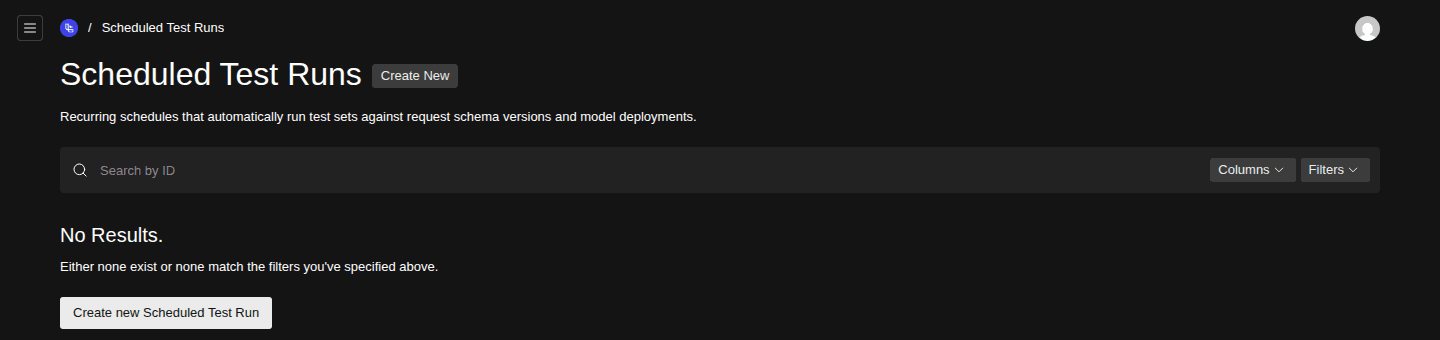
- Create New button
- Empty-state Create new Scheduled Test Run button
2. Create a new schedule
Click Create New. The form opens.
3. Pick what to run
The schedule needs three relationship fields filled in: a published Request Schema Version, a published Test Set, and a Model Deployment.
Pick the Request Schema Version first. Once you have, the Test Set dropdown only lists published test sets where every ground-truth document has a published response for that version's schema type — i.e. sets that can actually be scored against this version. If a set you expected is missing, one of its documents is short a published response (see the Shared Published Ground Truth Responses panel on the test set), or it's scoped to a different schema type. Until a version is selected, the dropdown shows all published test sets.
4. Set a cron schedule
Enter a cron expression like 0 6 * * 1 (every Monday at 06:00 UTC) for weekly regression checks. If you're new to cron syntax, crontab.guru is a friendly explainer.
5. Enable it
Save. A disabled or draft schedule does not fire. Once it's enabled, the next firing happens at the next matching cron tick.
How it actually fires
A Kubernetes CronJob (evalengine-production-scheduler in production) runs every five minutes and calls an internal endpoint that finds all enabled schedules whose next firing is in the past, then dispatches them. So the granularity of your cron expression is effectively five-minute buckets — * * * * * will run every five minutes, not every minute.
Where the results live
Each firing produces a Test Result Set, the same kind of artifact a Manual Test Run produces. Open View Test Analytics to see the trend lines across firings.
Common errors
- The test set you want isn't in the dropdown — you either haven't picked a Request Schema Version yet, or not every document in that set has a published ground-truth response for the chosen version's schema type. Open the test set and check the Shared Published Ground Truth Responses panel to see which schema types it's ready for.
- Schedule never fires — most often because the schedule is disabled, or the test set / schema version was archived after the schedule was saved.
- Cron expression rejected — the cron parser is strict.
0 6 * * 1-5(weekdays at 06:00 UTC) is fine; ad-hoc shorthand like@dailymay not be.
Related
- Assemble a Test Set — what gets run.
- Run a Manual Test — for one-shot runs of the same combination.
- View Test Analytics — see the results pile up.
Run a Manual Test
Benchmark a Request Schema Version against one or many model deployments on demand, then compare accuracy, cost, and latency side by side.
View Test Analytics
Compare model accuracy, cost, and latency over time, by field, by document, and head-to-head — across every benchmark you've run.